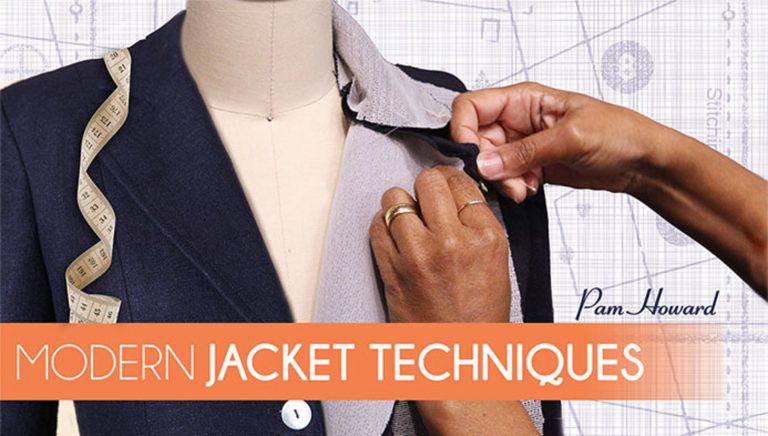
Learn how to sew a jacket of superior quality in less time with sought-after sewing instructor Pam Howard. Learn how to pick out jacket patterns, choose and handle jacket fabric, work with the right fusible interfacings and prepare your pattern pieces for efficient sewing. Then, create your best, most accurate welt pockets. Skillfully set in sleeves with mitered vents and add structure with shoulder pads and sleeve heads. Sew your undercollar, upper collar and jacket facings with confidence. Install and finish your jacket lining with a center-back ease pleat and jump hem for wonderful ease of movement. Finish your work beautifully with topstitching, perfectly spaced buttonholes and buttons, and smooth hems. Upgrade your skills to sew event-ready jackets in less time.
Meet your instructor, designer and sewing coach Pam Howard, and learn more about the techniques covered in your class. Pam will go over the features of streamlined ready-to-wear style jacket construction and discuss choices of fabric and interfacing. She'll also show you how to prepare your pattern and fabric pieces for sewing.
Get started sewing your classic jacket by constructing your best, most accurate welt pockets. In the process, Pam shares tips for adjusting a pattern for a better pocket fit. Learn how to make the pocket flap, mark and sew the welt and attach the pocket bag.
Gain from Pam's experience in menswear tailoring as you learn how to easily and efficiently set in a sleeve the first time.
Tailored jackets gain structure from shoulder pads and sleeve heads. Pam discusses how you can choose shoulder pads based on the look you want, then walks you through the process of installing pads and sleeve heads. You'll also learn how to sew a professional mitered corner to finish your sleeve vents.
Get a truly professional look by using Pam's streamlined techniques for installing the undercollar and upper collar and attaching the jacket facings with a clean finish. Understitching holds it all in place.
If linings make you nervous, just remember that they mirror what you've just sewn on the jacket. Pam shows how to prepare your jacket lining and how to create a center-back ease pleat before sewing the lining into the jacket.
Finish up the lining and attach it to your hem with a fell stitch. Learn to create a jump hem to give you freedom of movement without allowing the lining to show below your hem.
Your jacket is nearly done! Pam discusses the final finishing touches, from buttons and buttonhole placement to edgestitching and topstitching, that set designer ready-to-wear apart. Attach the lining at your cuffs and give the jacket a final press. You're ready to wear it with pride!
Pam W. Howard
Pam Howard, owner of Pamela's Closet, Inc., teaches intermediate to advanced clothing construction, specializing in precision sewing, tailoring and couture techniques. Pam has been sewing since she was 14 years old, originally taught by two neighbors in her hometown in Virginia. She is a member of the American Sewing Guild (Atlanta Chapter), and has taught at five national ASG conventions and at the Original Sewing and Quilt Expos in Atlanta, Kansas City, Chicago, Minneapolis and the Washington, D.C., area. In 2005, Pam launched her own sewing retreats, Tailoring Boot Camp, held at a bed-and-breakfast in Georgia.
In addition to teaching, she tests patterns for the Threads magazine Pattern Review column and was a guest on DIY's Sew Much More, hosted by Susan Khalje.
Modern Jacket Techniques - Supplies and Resources
Bonus Materials available for download after purchase.
Can I purchase a class to keep in my collection?
Yes, we do have a Shop where you can purchase classes to keep. Our Shop items are located under the Shop Tab.
How do I know what the Class covers?
Every Class has a free Preview video you can watch, to give you a flavor of the Instructor and the skills or project that will be covered. In addition, the Overview tab includes a thorough written description of the Class. And finally, each Class Session has a brief written summary of the content in that Session, including the length of each Session video. You will get a good feel for the Class content by reviewing these resources.
Do I have to be a Member of Craftsy to purchase a Class?
No you don’t. While Premium Members will receive regular offers for special deals on Craftsy content, Classes are not reserved exclusively for Members. If you buy a Class as a non-member, we’re sure you’d also enjoy having access to our full library of great projects and articles as a Member, so give it a try.
How do I purchase a Class?
First you should decide that the Class is what you want. Review the Class Preview video and the various written descriptions of the Class and each Session before you purchase, so you have a good understanding of the Class content. When you’re ready to purchase and gain access to the Class, simply click the “Add to Cart” button, and proceed through the Checkout process.
How do I access/view my Class?
Once you’ve paid, you can access/view your Class by going to the MY ACCOUNT section of Craftsy. The MY ACCOUNT link is in the upper right-hand area of the website. Within your MY ACCOUNT, a section labeled “My Content” is where the class you purchased will appear, including a link to watch the video of your Class. You’ll also receive an email confirmation after your purchase, which will include a link to view your Class. You can access your Class as many times as you wish, and you’ll never lose access to your Account information. Just be sure to “Log In” for access to MY ACCOUNT.
Do I have to take the Class right away?
No. Any Class you buy will be accessible to you always. You can view your Class whenever you want, and you can view individual Sessions in whatever order you like.
Is there a limit on the times I can view my Class?
No. Your access never expires. You can view any Class you purchase as many times as you want, whenever you want.
Can I view a Class on my tablet device or mobile phone?
No problem. Most newer-model smartphones or other mobile/tablet devices with an internet connection are able to play the Class videos. Simply Log In to Craftsy, and you can view any Class you’ve bought through the MY ACCOUNT section. Or, you can click on the “View Class” link within the email confirmation you’ll receive upon your purchase.
How do I get access to the Bonus Materials for the Class?
Until you purchase a Class, the Bonus material (any extra videos, download materials, etc.) will not be accessible. Once you purchase a Class, and go to view your Class, each individual Bonus element is accessible by simply clicking on each item. You’ll find the Bonus Materials directly below your main Class viewer frame. You can access the bonus materials as many times as you like and/or save them to your device.
How does the Class Q&A Resource benefit work?
Once you purchase any Class, within the Class viewing page, you’ll have access to post a question, comment or tip in the Class Discussions. This is not a “live chat,” but Craftsy contributors will answer posted questions and provide tips regularly. You can also view other Class participants’ questions and input to take part in this virtual dialogue among others who have taken the Class and are willing to share tips, answers, or ideas.
Can I print out Class details?
For any Bonus Material that is a PDF Download, yes you can. Just click on the icon/button for the Bonus element you want and print with your local printer.
What are PDF downloads?
These are simply documents, plans, or written materials that are formatted in a way to print out and retain for reference. By simply clicking on the icon/link for any PDF Download that is included with a Class, you can print that document on your own printer or simply view the contents on your computer/mobile device.
Are there any system requirements to view the Class video content?
Your Class video content is best when viewed on a computer manufactured in the past couple of years with a good broadband Internet connection (not dialup). We also highly recommend using the latest version of Firefox, Safari, or Chrome as your Internet Browser, though recent versions of Internet Explorer will work as well. The recommended screen resolution is 1024 x 768 or larger.
Why do you need my email?
We need it to acknowledge your purchase of a Class, and send you a confirmation of your transaction. Also, to maintain your permanent access to the Class videos, you’ll need to Log In to craftsy.com. We guarantee that we will not share your email with any third parties. You may receive email updates from Craftsy from time to time, with details of new Classes and updates. You can easily unsubscribe when you receive any email.
Can I get a refund if I don’t like the Class?
Because you’ll have full access to all the materials and content that is presented in the Class immediately, we can’t offer a refund after purchase. Please review the Class Preview video and the various written descriptions of the Class and each Session before you purchase, so you have a good understanding of the Class content.
How do I contact Craftsy?
If your question is about the Class content, please use the Contact Us Link – and you'll receive feedback from the Class Instructor. Even your fellow Class participants may jump in to offer tips and advice from their experience. If you have other questions or need help, you can email us at craftsy@program-director.net or call us toll-free, at 1-888-891-7203 . Customer Service Representatives will be available Monday-Friday, from 8:00 AM to 4:30 PM Central time, excluding normal holidays.
Explore Classes by Pam W. Howard
You may be interested in
Sign up for our free newsletter today
Get the latest crafting videos, tips, patterns and techniques delivered right to your inbox.